
This information only applies to Independent Consultants and 1099s i.e., you have a legally registered business, and you invoice Raise regularly through your business. If you’re a Contract Employee (T4 or W-2) – please skip this article.
Your expense report and expense invoice are separate #
As an Independent Consultant (IC) or 1099, you personally (as the Consultant) need to submit your expense report to the client company in their system, and following their guidelines.
Then, your business will invoice Raise for the amount on the expense report, so we can reimburse your business for your expense report.
This article is focused on business invoicing.
Invoice for hours and expenses separately #
Please send separate invoices for expenses and for hours (services). If you have questions on how to invoice for hours, please see this support document on how to invoice for hours.
How to submit an expense invoice #
You can build and submit invoices right inside the Raise App.
If you are using small-business accounting software (e.g., Quickbooks, Freshbooks, Wave, Xero, etc.) we have instructions on how to submit a PDF invoice below.
Sign into the Raise App. If you forget the address—visit Raise.jobs and click Sign In in the top right-hand corner.
Select the Create a New Invoice button.
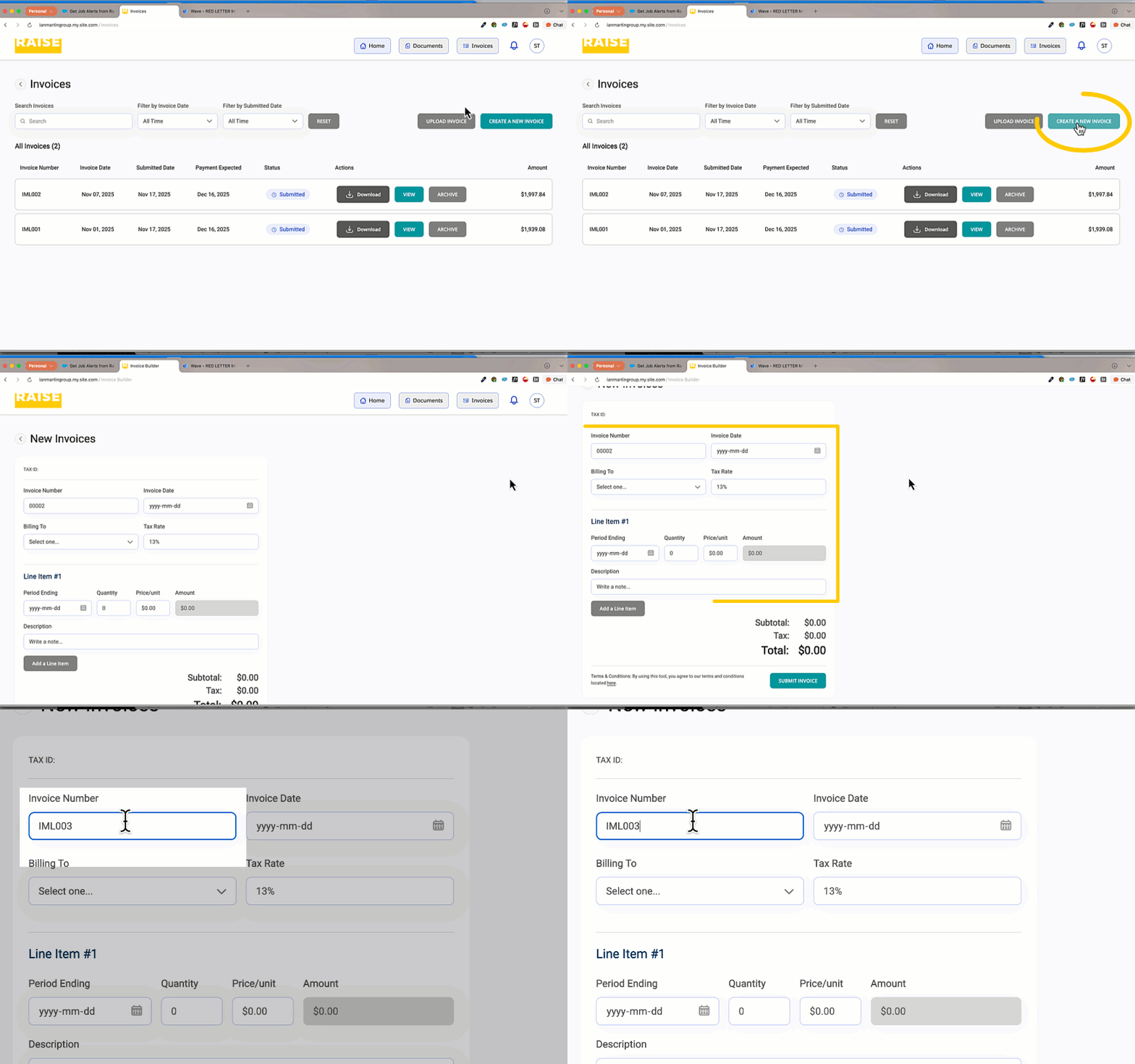
Complete all the fields:
- Invoice Number: you can choose your numbering format, provided each invoice has a unique number;
- Invoice Date: the date you’re sending the invoice;
- Bill to: the legal name of the Raise company you’re working with; check your agreement document in the App or ask your Contractor Success Representative if you don’t know which Raise company you’re billing;
- Tax Rate: enter the provincial or state tax for your jurisdiction;
If you’re working in multiple jurisdictions—for example, you’re working between Canadian provinces or US states that have different tax rates—you should include the tax rate where you’re registered. For more information on what tax rate you should use as an Independent Consultant, please see this help document.
- Period Ending: for simplicity, you can enter the date of your last expense.
- Quantity: enter “1“.
- Price/Unit: enter the pre-tax subtotal amount of your entire expense report.
Unless instructed otherwise, your business expense invoice does not need to include an itemized list of all your individual purchases like the expense report that you submitted in the client company’s system.
The amount in the Price/Unit field just needs to match the (pre-tax) amount of the expense report you submitted.
- Description: add the Expense Report number so we can reconcile this invoice with your approved expense report.
Add another expense report to your invoice (optional) #
To add hours for another week, select Add a Line Item.
- Each line on your invoice should exactly match the subtotal (pre-tax amount) of one expense report.
- If you are invoicing to be reimbursed for a second (or third) expense report, select Add a Line Item. The next line item on the invoice should correspond to your next expense report.
Submit your Invoice #
Select Submit Invoice. Verify the invoice information is correct, select Submit Invoice. Select OK to confirm.
You will see your completed invoices on the invoice screen. Select Download to download a PDF for your records.
How to invoice for expenses if you’re using small-business accounting software, or your own template #
If you’re using your own template (e.g, an Excel or Word teamplate) or a small-business accounting /bookkeeping application (e.g., FreshBooks, Quickbooks, Wave, Xero, etc.) – you can usually use these apps to export a PDF invoice.
Just like in the Raise App builder, your PDF invoice should have the following:
- Name: The legal name of your registered business;
- Tax registration information: E.g., your business’ GST or HST registration number;
- The “care of” information: i.e., your name and contact information;
- Invoice Number: you can choose your numbering format, provided each invoice has a unique number;
- Invoice Date: the date you’re sending the invoice;
- Bill to: The legal name of the Raise company you’re working with; check your agreement document in the App or ask your Contractor Success Representative if you don’t know which Raise company you’re billing;
- Tax Rate: Enter the provincial or state tax for your jurisdiction;
- Quantity: Enter “1” as you will enter one complete subtotal that matches your expense report.
- Price/Unit: include the entire subtotal (i.e., the pre-tax amount) from the expense report you submitted.
- Description: Include the expense ID number (if your expense submission system provides one) or make a reference to your expense report.
Many online accounting/bookkeeping applications have a feature where the app will email invoices directly to customers – but this often causes issues as it comes from their email, not yours. Please export the PDF and either upload it in the Raise app, or email the PDF directly to accountspayable@raiserecruiting.com. See below for instructions.
Option 1: Upload your PDF #
- Sign into the Raise App. If you forget the address—visit Raise.jobs and click Sign In in the top right-hand corner.
- Select the Upload Invoice button.
- Complete the 3 fields:
- The invoice number from your PDF invoice;
- The date on the PDF invoice;
- The total amount for your PDF invoice
- Either drag and drop your PDF into the upload box, or select Browse to browse for it on your computer or device.
- Select Upload Invoice.
- You will see your completed invoices on the invoice screen.
Option 2: Email your PDF as an attachment to Accounts Payable. #
You can also email the the PDF or another document type (e.g., Word document, Excel file) as an attachment to accountspayable@raiserecruiting.com,
Please start a fresh email with a unique subject line (please don’t reply to / reuse an old email!)
We recommend the subject line format:‘Date of Invoice, Invoice Number, Business Name, Expense Report Number’ to ensure payment at 30 days.
If you need to edit an invoice #
Due to compilations with expense reports, expense invoices are likely to have the most discrepancies during reconciliation.
If you need to edit an invoice, the Contractor Success team will let you know, and the invoice in question will be “unlocked” in the Raise App.
- Sign back in to the Raise App.
- Select Invoices.
- The invoice in question will be editable. Edit and save the invoice.
When will my invoice be paid? #
As per your agreement, payment terms are Net 30 upon receipt of your invoice.
If you want to know when your invoice will be paid, you can use our invoice & payment date calculator here.
There is no set invoicing schedule – you can invoice whenever you want (even weekly) and you’ll be paid within 30 days on the Tuesday. Many ICs choose to invoice after they submit their weekly timesheet to keep a regular routine.